
Accessing Your Live Class Sessions via Zoom
All live sessions and labs are hosted through Zoom and can be accessed directly through the Circuit Stream Learning Management System (LMS). You do not need to search for a separate meeting link outside your course.
Important: Your Zoom meeting room(s) will remain the same throughout the duration of your course.
Step 1: Log in to the LMS and open your course
Log in to your Circuit Stream LMS account and select the course you are enrolled in from your dashboard.
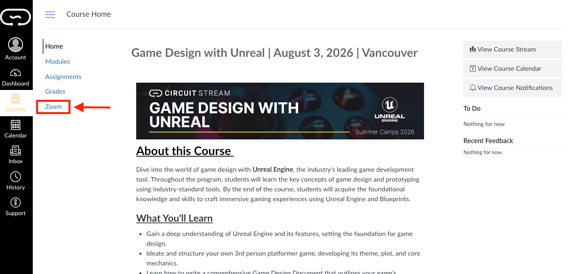
Step 2: Select the Zoom tab
Within your course, locate the white navigation bar on the left-hand side of your screen and click on Zoom.
Step 3: Select your Zoom meeting room
Once you open the Zoom tab, you will see your available meeting rooms. Select the meeting room for the session you wish to attend by clicking Join.

Step 4: Wait for your instructor or career coach
After clicking Join, you may be placed in a waiting room until your Instructor or Career Coach starts the meeting. Please wait until you are admitted to the session.
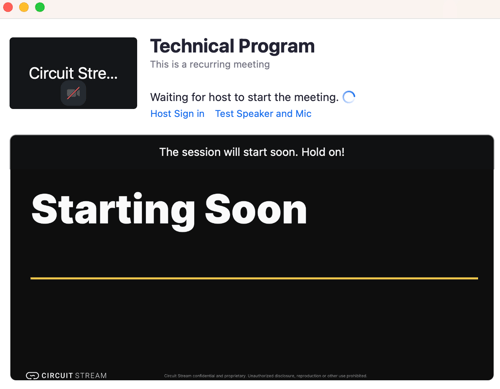
Once your instructor or career coach starts the meeting, you will be able to join and participate in your live session.
How to Find and View Class Recordings
All live sessions and labs are recorded and uploaded to the LMS shortly after the session ends. Recordings allow you to review course materials, reinforce your learning, or catch up on sessions you were unable to attend.
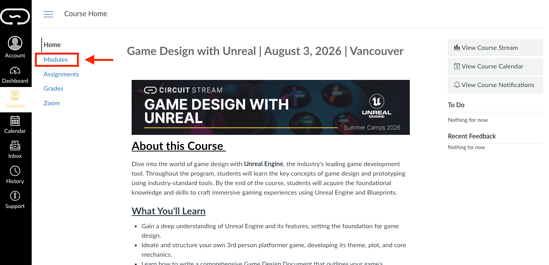
Step 1: Open your course and select Modules
Log in to the LMS, open your course, and select the Modules tab from the white navigation bar on the left-hand side of your screen.
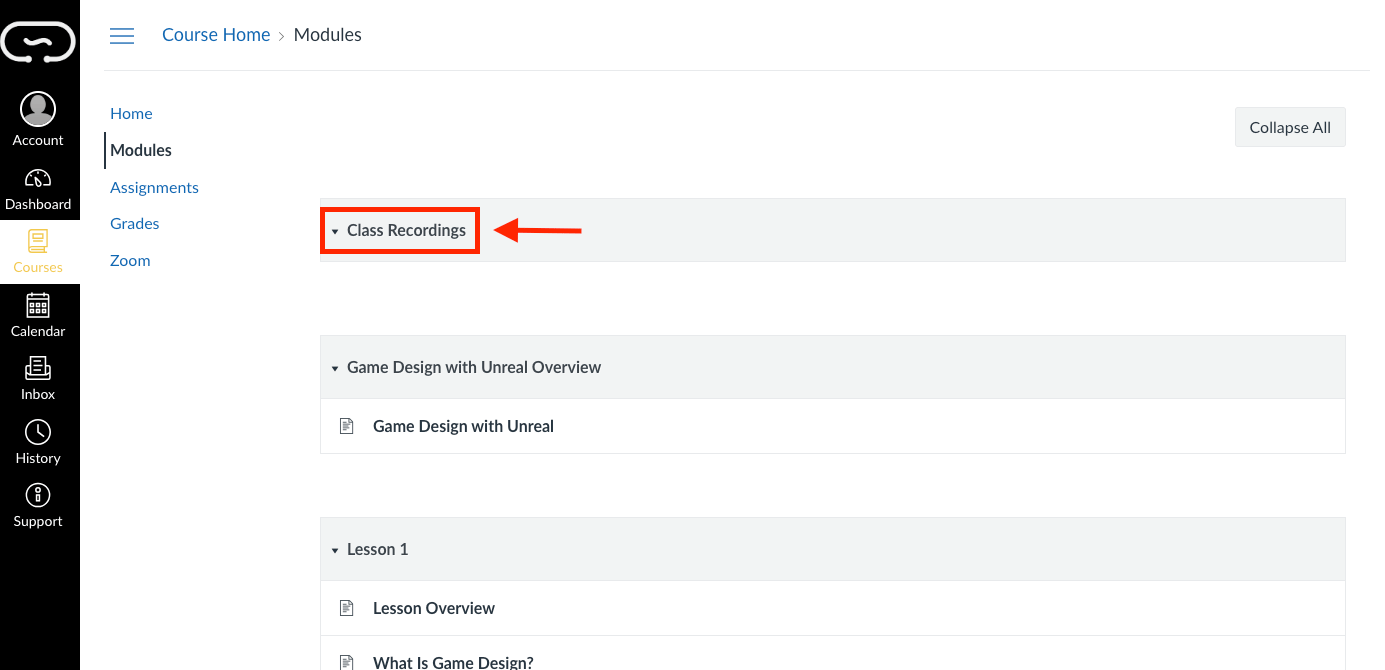
Step 2: Locate the Class Recordings folder
Within Modules, find the Class Recordings folder. Click the folder to expand it and view the available recorded sessions.
Step 3: Select the recording you wish to watch
Browse the available recordings and select the lesson or session recording you would like to view. Clicking on the recording will open it within the LMS.
Step 4: Watch the recording
Once the recording opens, you can watch it directly within the LMS video player. You can use the playback controls to:
- Play or pause the recording.
- Rewind to review a section you missed.
- Fast-forward to move through the recording.
- Adjust playback using the video player controls.
You can revisit recordings as needed to review course content and reinforce your understanding of the material.
How to Download Class Recordings
If you would like to save a class recording to your device for offline access, you can download it directly from the LMS.
Step 1: Navigate to Modules
Open your course in the LMS and click on Modules in the course navigation bar.
Step 2: Find the recording under Class Recordings
Locate the Class Recordings folder and find the lesson containing the recording you want to download.
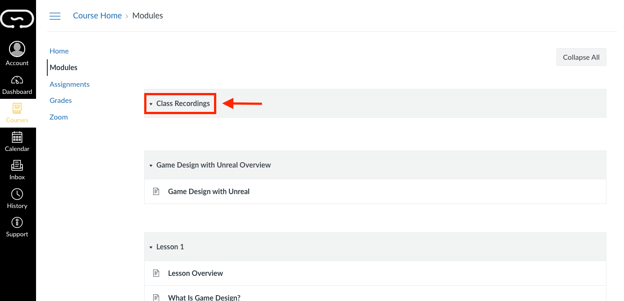
Step 3: Open the recording lesson
Click the lesson or recording title to open the recording page.
Step 4: Click the Download link
On the recording page, click the blue Download link displayed above the video player. The recording will begin downloading to your device.
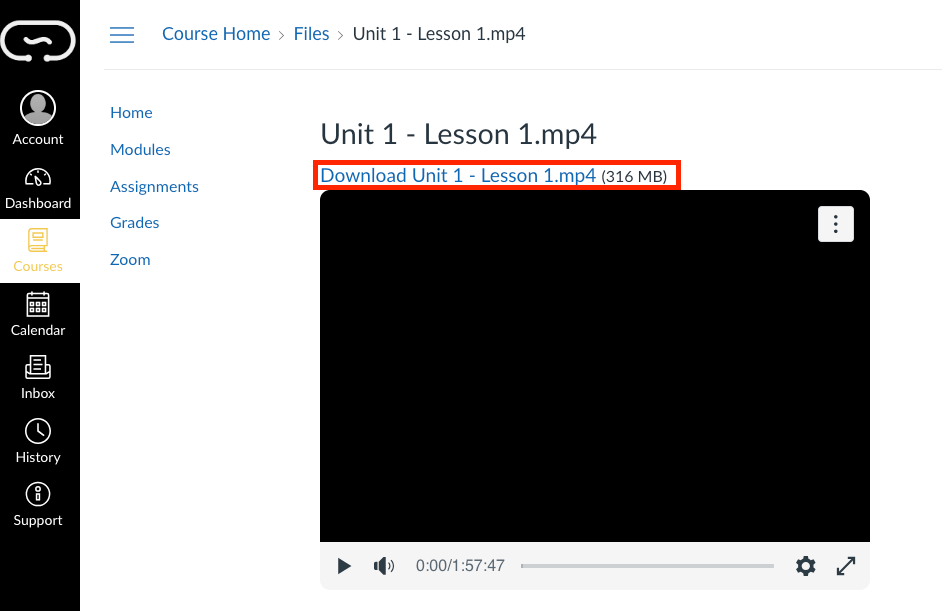
Once downloaded, you can access the recording from your device whenever you need it.
Important Reminders
- Class times: All class times are listed in Pacific Time (PT).
- Course access: You will generally gain access to your course content approximately one week before your course start date.
- Live sessions: Access your live sessions through the Zoom tab within your course.
- Recordings: Recorded sessions and labs are uploaded to the LMS shortly after the session ends.
- Download access: You can download recordings directly from the recording page if you would like to save them to your device.
Troubleshooting
I can't find my Zoom meeting room.
- Ensure you are viewing the correct course in the LMS.
- Select the Zoom tab from your course navigation bar.
- If the meeting room is still unavailable, contact Student Experience for assistance.
Zoom is not opening.
- Ensure you have the latest version of the Zoom application installed on your device.
- Try opening the session using a different browser or device if the issue persists.
- Check your internet connection.
I can't find my class recordings.
I can't find my class recordings.
- Ensure you are accessing the correct course.
- Click the Modules tab and look for the Class Recordings folder.
- Refresh your browser if recordings are not appearing.
- Ensure your course enrollment is active.
My recording won't play.
- Check that you have a stable internet connection.
- Use a supported browser, such as Google Chrome or Mozilla Firefox.
- Try clearing your browser cache or disabling ad blockers if playback issues continue.
Need More Help?
If you have any questions or experience issues accessing your live sessions or recordings, please contact our Student Experience team.
Email: studentexperience@circuitstream.com