
Find and Access Your Assignments
Step 1: Log in to the LMS and open your course
Log in to your Circuit Stream LMS account and select the course you are enrolled in from your dashboard.
Step 2: Select the Assessments tab
Within your course, locate the white navigation bar on the left-hand side of your screen and click on Assessments.
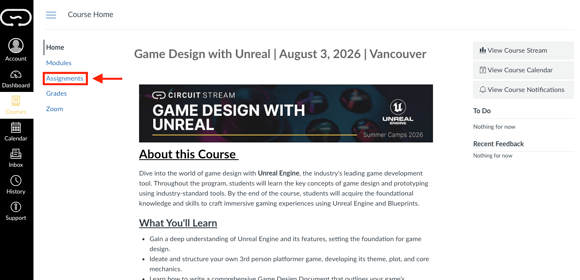
Step 3: View your assignments
Once you open the Assessments section, you will see a list of the assignments associated with your course. This may include regular assignments, a midterm, and your Capstone Project (Final Project – Pre-U), depending on your course.
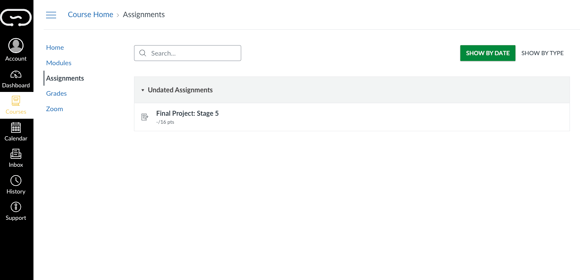
Browse the list and select the assignment you want to work on to view its instructions, requirements, and submission details.
Submit an Assignment
Step 1: Open the assignment
From the Assessments section, click on the title of the assignment you wish to submit.
Step 2: Review the assignment instructions
Before submitting, carefully review the assignment details, requirements, and any instructions provided by your instructor to ensure your submission meets expectations.
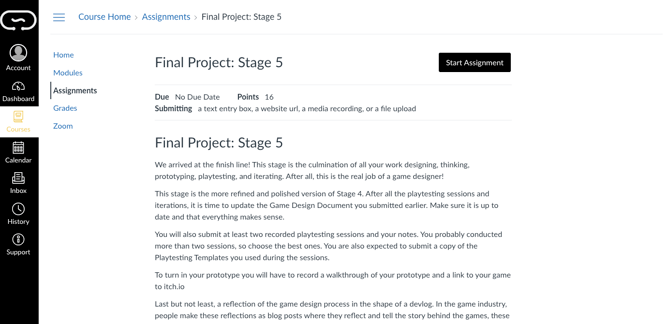
Step 3: Upload your assignment
Within the assignment page:
-
Upload or attach your completed file(s).
-
Add any comments if applicable.
-
Review your attached files to ensure you have uploaded the correct document.
Step 4: Click Submit Assignment
Once your file is attached and you are ready to submit, click Submit Assignment to complete the submission process.
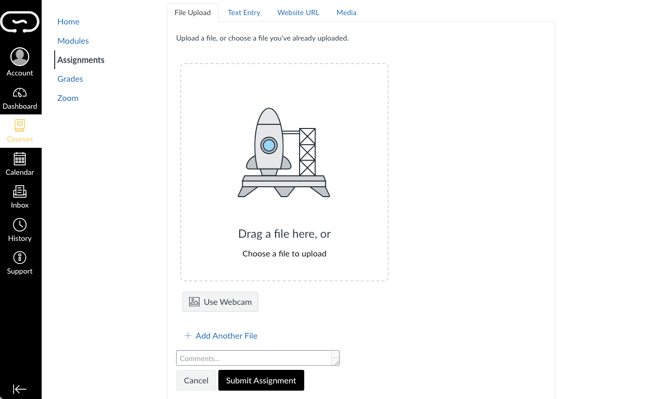
The following screenshot illustrates the file upload area and the Submit Assignment button.
After submitting, you should see your submission confirmation and details on the assignment page.
How to Confirm Your Assignment Was Submitted?
After submitting your assignment, you can verify that your work was successfully submitted.
- Return to the assignment page.
-
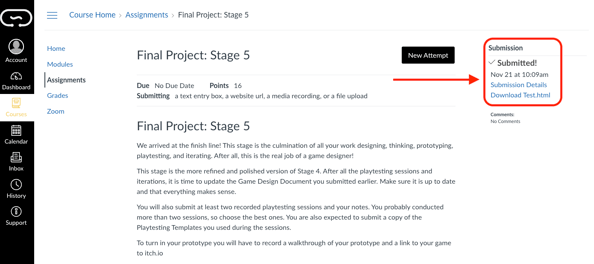
Look for the Submission details displayed on the right-hand side of the page.
- Confirm that your submission status and submission date/time are displayed.
- If available, click Download Submission to review the file you submitted and confirm it is the correct version.
Access Your Grades and Instructor Feedback
Once your assignment has been graded, you will receive an email notification to your account email. You can also view your grades and instructor feedback directly through the LMS.
Step 1: Select the Grades tab
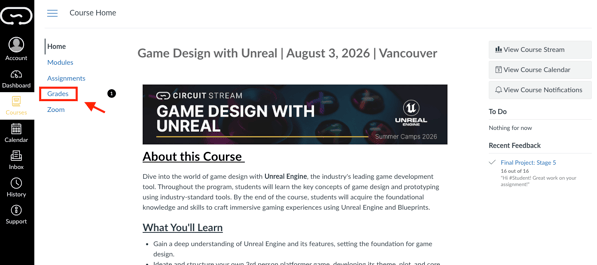
Open your course and click on Grades in the white navigation bar on the left-hand side of your screen.
Step 2: Review your grades
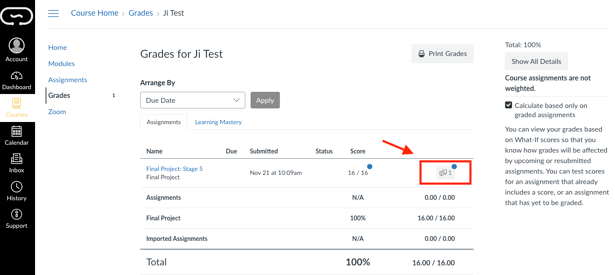
Within the Grades section, you will be able to view your grades and progress for assignments and other assessments in your course.
Step 3: Click the feedback message icon
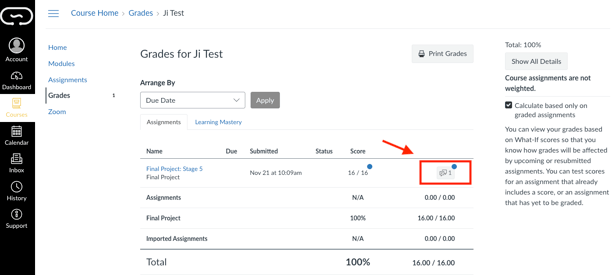
To view your instructor's feedback on a graded assignment, locate the assignment in the Grades section and click the message icon next to your score.
This will allow you to review any comments, feedback, or guidance provided by your instructor.
Troubleshooting
I can't find my assignments.
- Make sure you are in the correct course.
- Select the Assessments tab from your course navigation.
- Refresh your browser if the assignments are not appearing.
I can't upload my assignment.
- Make sure your file is in a supported format and does not exceed any file size restrictions listed on the assignment page.
- Check your internet connection.
- Try refreshing the page or using a supported browser such as Google Chrome or Mozilla Firefox.
I submitted my assignment, but I don't see confirmation.
- Return to the assignment page and check the Submission details.
- Refresh the page to see if the submission status updates.
- If you are unsure whether your submission was successful, contact Student Experience before submitting again.
I can't see my instructor's feedback.
- Check that the assignment has been graded.
- Navigate to the Grades tab and look for the message icon beside your score.
- If you received a grade but cannot see feedback, contact Student Experience for assistance.
Need More Help?
If you have any questions or experience issues accessing, submitting, or reviewing your assignments, please contact our Student Experience team.
Email: studentexperience@circuitstream.com